Extracting Embedded Resources with Ghidra
Malware commonly embeds files into their malicious binaries to help reduce its overall footprint of artifacts written to a system. These embedded files can be written to the disk by the process, but more commonly are manipulated in memory, whether that means a DLL being reflectively loaded into the process or a chunk of shellcode injected into another process. One way this is done is via resource files. Resource files are a common method within C\C++ programs to include additional file assets within the main binary, whether that be icons, images, or in the case of a lot of malware samples, other binaries. In Windows, these resource files are accessed by the program through the use of a number of Resource-specific Win32 APIs. In this blog post, we’ll examine a binary that does just this and use Ghidra to extract this resource to the disk for further analysis.
Setup
To show how this is done, we’ll be using the following small C++ program that is used to access the embedded resource:
| |
FindResource, LoadResource, LockResource, and SizeofResource are the internal Windows APIs that can be used to access the resource embedded within the binary. Below is a short explanation of what each of these API functions do:
- FindResource: Determine the location of a resource with the specified type and name in the binary
- LoadResource: Obtain a handle that can be used to obtain a pointer to the first byte of the specified resource in the process’ memory
- LockResource: Obtain the pointer to the specified resource in the process’ memory
- SizeofResource: Retrieve the size of the resource, in bytes
In this instance, variable IDR_RCDATA1 represents the embedded resource (of type RT_RCDATA) in the binary; this is configured in the resource.h header file as well as the .rc resource file.
Now that we understand what the code looks like, let’s open up the binary in Ghidra.
Finding the Resource
Below is what the C++ code above looks like in the decompiler:
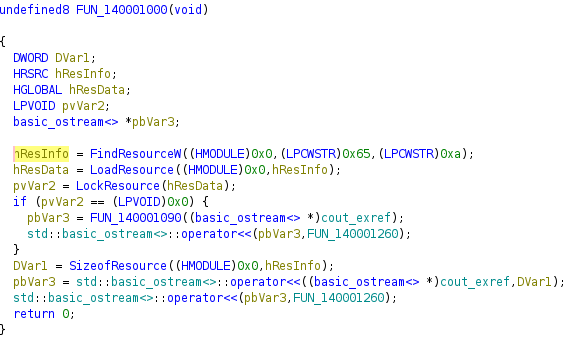
In our program, this was easy to find since it’s a simple program with the code in the main() function. However, in cases where the resource may be embedded within a large binary, the easiest way to get to this extraction mechanism would likely be to find references to one of the resource Windows APIs, such as LockResource. Regardless of how you get there, the main function call we care about is the FindResource one.
Looking at the C++ code above, the second argument to the FindResource function gives the name of the embedded resource. This is the argument that we’ll focus on in this call. In the decompiled code for this example, we can see that it references the hex value 0x65:
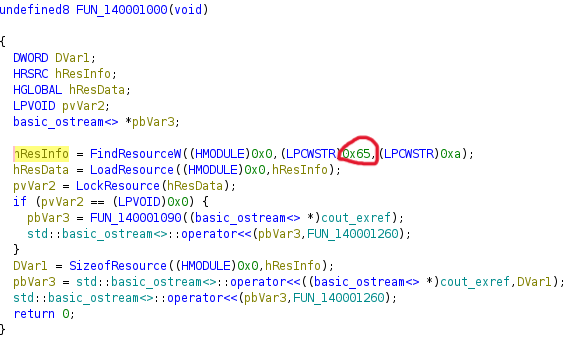
Keep track of this value as it will be crucial for the next step.
In the Symbol Tree window in Ghidra, expand Labels and go down to the R folder, if there are multiple folders in the tree. Expanding the R folder, we can see a number of symbols, atleast two of which should start with Rsrc. Remember that 65 value from earlier? This is where we’ll use it. Find the Rsrc symbol that contains the value from the previous step; in our case, this would be Rsrc_RC_Data_65_409:
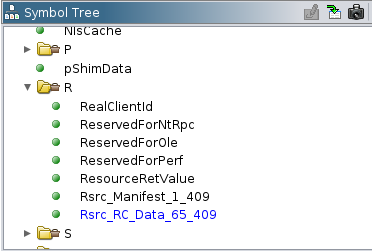
Clicking on this label will take us to the starting point of the resource in Ghidra’s disassembler!
Extracting the Resource
Now that we have the location of the resource in the binary, we can work on extracting it. Right-click the label in the Symbol Tree (the Rsrc_RC_Data_65_409 in our example), and click Make Selection. This will make the location in the disassembler highlighted in green:
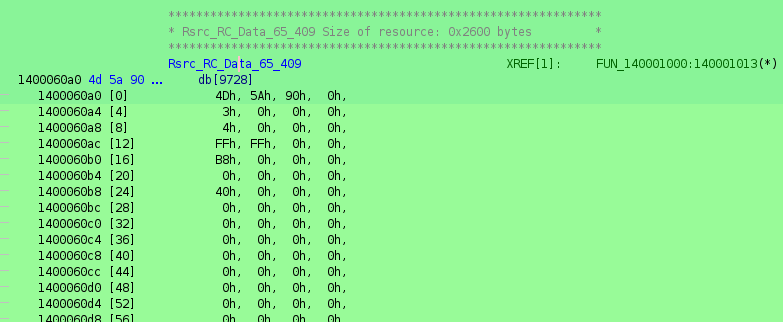
Those who are familiar with PE files will recognize the first two bytes, 4D 5A of this resource as the “magic bytes” of a PE file. This means that, in this case, the embedded resource is another binary, either an EXE or DLL file.
With the resource selected, right-click in the disassembler and click Extract and Import. This will open up the following dialog box:
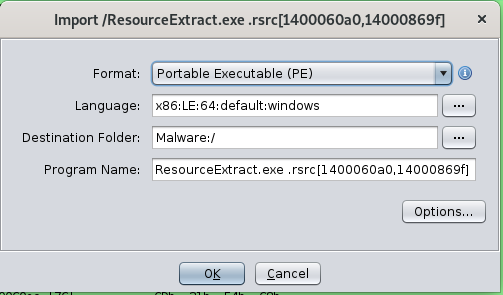
You can rename the program or keep it as is, whatever you prefer. Regardless of what you do, once you click Ok, Ghidra will open up a new code browser with the extracted resource in it, letting you perform any further analysis you want on the actual embedded resource!
Exporting the Resource to File
Since our embedded resource is another PE file, analyzing it in its own Ghidra window makes sense. However, what if it wasn’t a PE file? Or what if it is, but it’s encrypted? If you want to instead save the embedded resource to the filesystem, you can do so from within this new Ghidra window.
In the Ghidra window of the embedded resource, click File, then Export Program. The following dialog box will open after doing so:
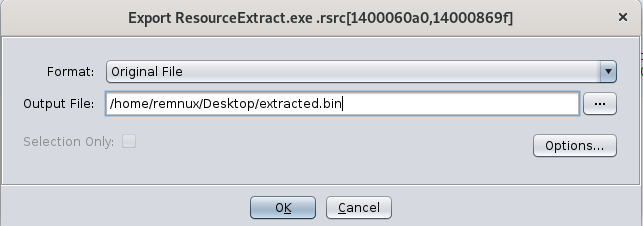
From here, make sure the Format is set to Original File and set whatever output filename you want. Once you click Ok, the embedded resource will now exist on your filesystem as its own file, at the location you just specified! This can be a great option to do if you need to perform additional manipulation on the file to analyze it.
Conclusion
Embedding resources within a file is a great way to reduce artifact footprints on a system and allow for easier ways to reflectively load or otherwise manipulate files and processes completely in memory. If you come across a binary that has an embedded resource and uses common Windows APIs to access it, performing these steps in Ghidra can be a great way to extract that resource and analyze it further for any malicious behavior.